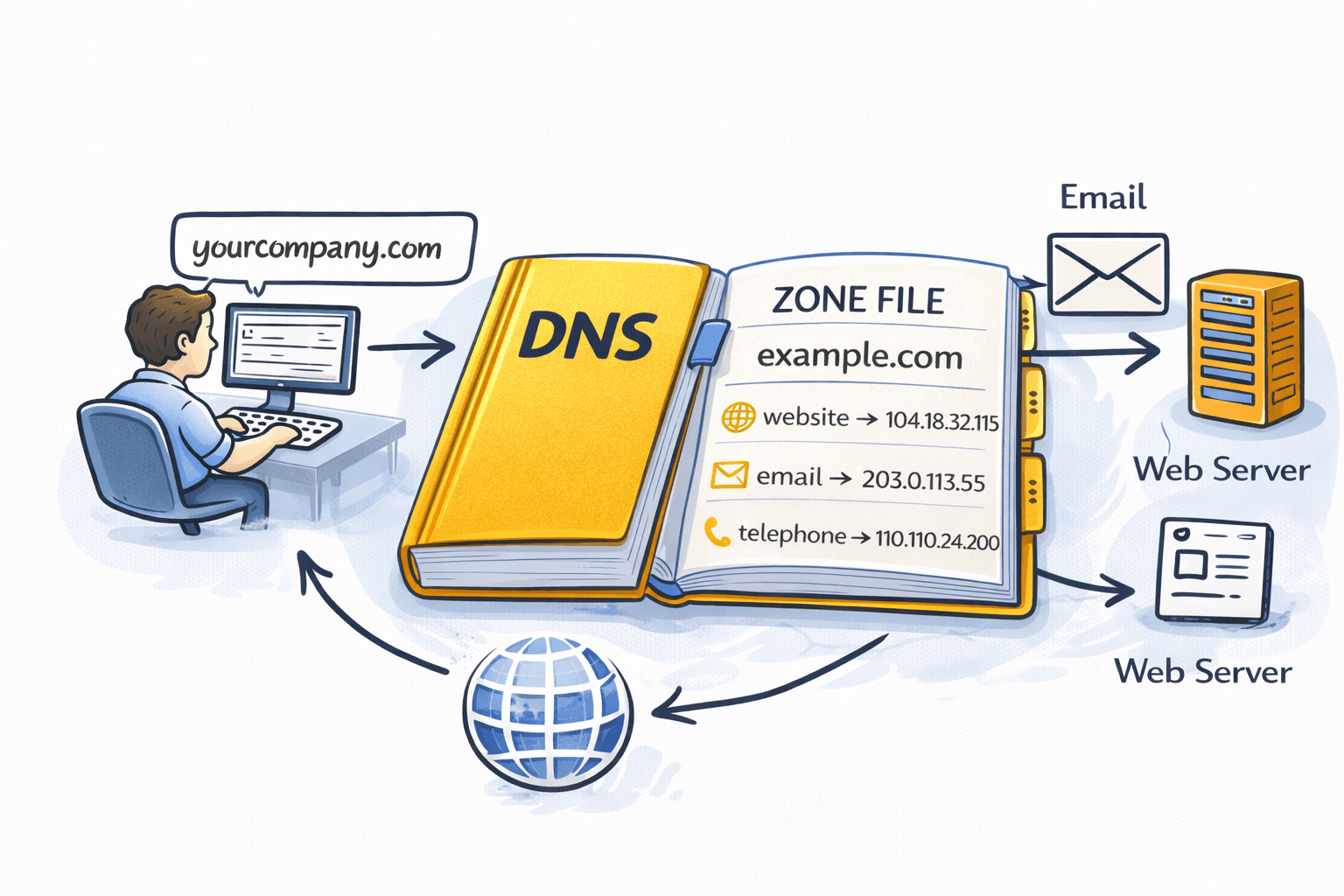
The internet’s phone book (and why you should care)
Every time you type yourcompany.com into a browser, send an email to someone, or click a link in a marketing newsletter, a quiet, lightning-fast lookup happens in the background. Your computer asks, in effect, “Where does yourcompany.com actually live?” The system that answers that question is DNS — the Domain Name System — and it is arguably the most important piece of plumbing on the internet that almost nobody thinks about.
Humans remember names. Computers route traffic using numbers (IP addresses). DNS is the translator in the middle. Without it, you’d have to memorize numbers like 104.18.32.115 instead of yourcompany.com, and when your hosting provider moved servers, your whole customer base would lose you overnight.
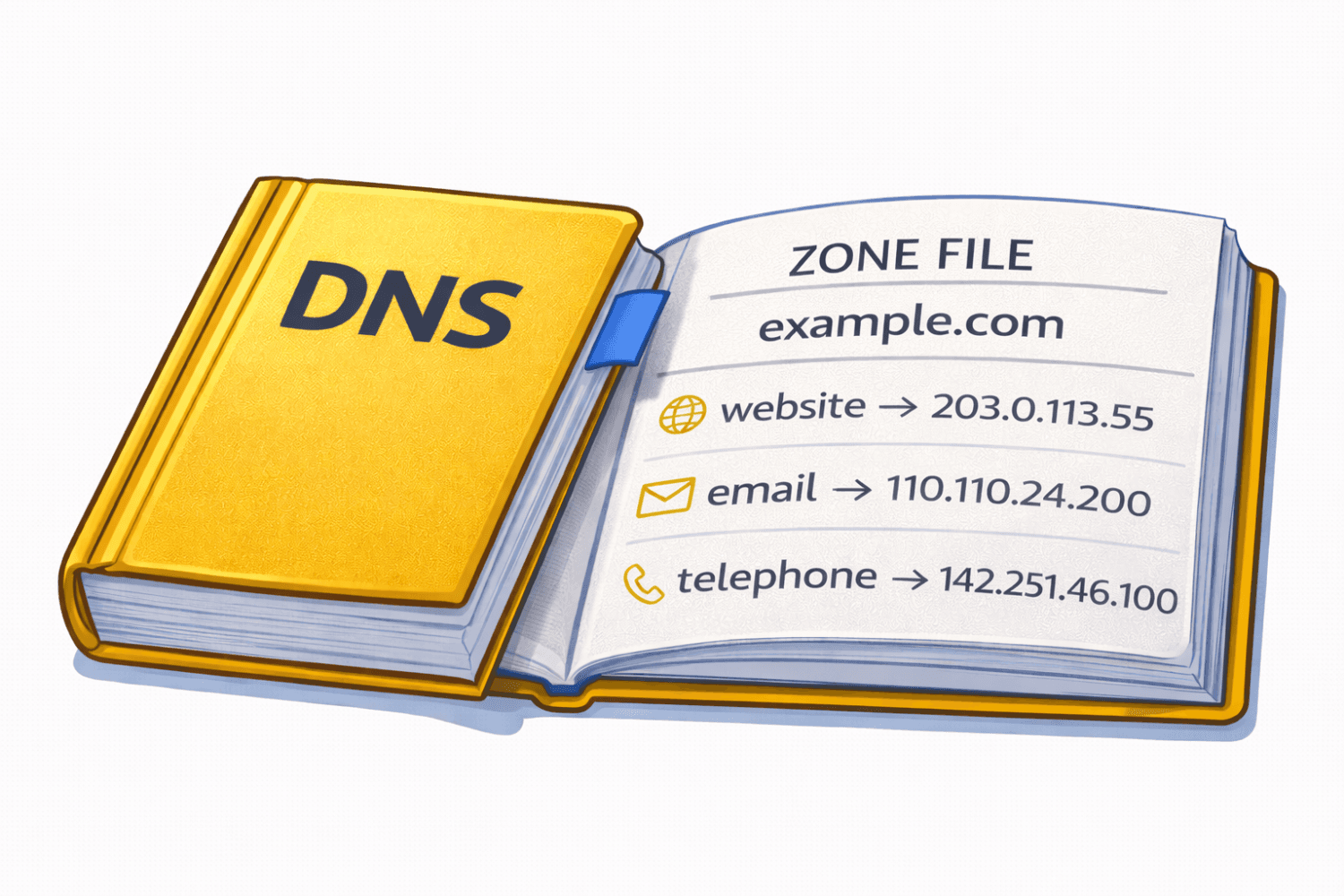
The master document that defines how a given domain behaves — where its website lives, who handles its email, which third-party services it trusts — is called a DNS zone file. This post walks through what a zone file is, what lives inside it, and when each of the most common records actually gets used in the course of running a normal business.
What is a zone file, really?
A DNS zone file is a plain-text file (or, in modern managed DNS services, a structured database that behaves like one) that lists every DNS record for a specific domain. If your domain is yourcompany.com, then the zone file for yourcompany.com is the authoritative answer book for any question the internet might ask about it: Where’s the website? Where does email go? Is this domain allowed to send mail on Google’s behalf?
A “zone” is simply the slice of the DNS namespace you control. When you buy a domain, you get control over that domain’s zone. You, or your IT team, or your hosting provider, decide what records go in it.
You generally never see the raw zone file anymore — most people interact with DNS through a web dashboard at Cloudflare, AWS Route 53, GoDaddy, Google Domains, or whichever registrar or DNS provider they use. But under the hood, every row in that dashboard corresponds to a line in a zone file.
Here’s an example DNS zone file:
A single record has a predictable shape. It roughly says:
“For this name, the answer to this type of question is this value, and you can cache that answer for this long (TTL — or, Time To Live).”
Let’s break that down with a real example:
www.yourcompany.com. 3600 IN A 203.0.113.25www.yourcompany.com.— the name being asked about3600— the TTL (time to live), in seconds; how long resolvers can cache this answerIN— the “class,” effectively alwaysINfor internet; you can safely ignore itA— the record type (here, a mapping from name to IPv4 address)203.0.113.25— the answer
Every record in a zone file follows that same basic pattern. What changes is the type, and the type determines what question is being answered. Below are the types you’ll run into in day-to-day business life, and why each one matters.
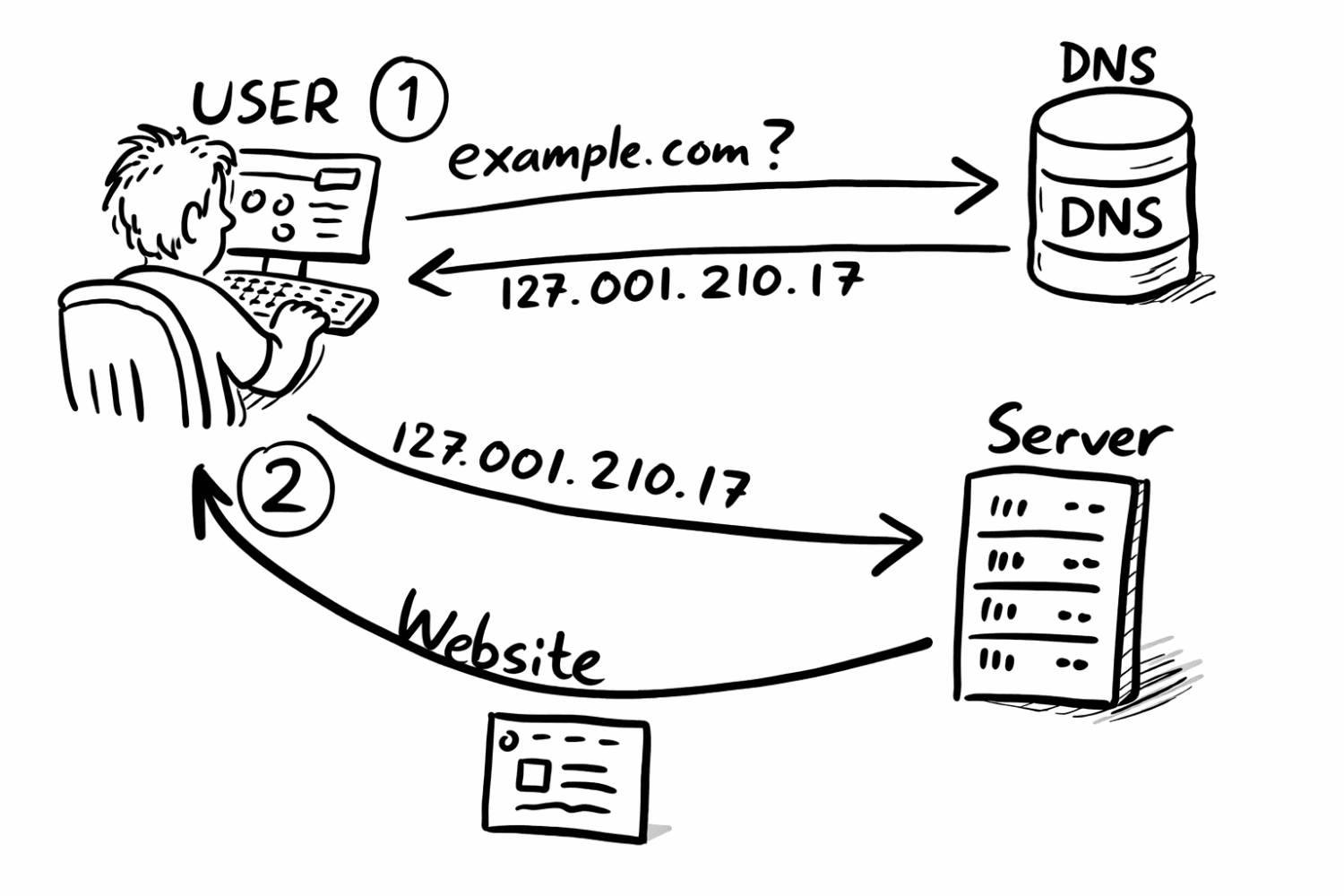
A records: “Where does the website live?”
The A record is the workhorse of DNS. It maps a hostname to an IPv4 address. When someone types yourcompany.com into a browser, an A record is almost certainly what points them to the right server. The “A” stands for “apex”.
Typical use cases in a business:
- Your main website:
yourcompany.com→ the IP of your web server or CDN. - Subdomains for internal tools:
wiki.yourcompany.com→ the IP of your Confluence server.vpn.yourcompany.com→ the IP of your VPN appliance. - Landing pages:
promo.yourcompany.com→ a dedicated campaign server.
When you move your website to a new host, you change the A record’s value. That’s effectively “the move.” Within the TTL window, the rest of the internet picks up the new address.
AAAA records: the IPv6 cousin
An AAAA record (pronounced “quad-A”) does the same job as an A record, but for IPv6 addresses — the newer, much larger pool of internet addresses. Most modern hosting providers give you both, and most devices will prefer IPv6 if available. You rarely set these up manually anymore; your host or CDN tends to handle it. Functionally, think of AAAA as “A record, but for the future-proof version of the internet.”
CNAME records: aliases and the magic behind marketing platforms
A CNAME record (“canonical name”) is an alias. Instead of saying “this hostname is at this IP,” it says “this hostname is another name for that hostname — go look that up.”
Example:
shop.yourcompany.com. CNAME yourcompany.myshopify.com.This tells the internet: “When someone asks about shop.yourcompany.com, pretend they asked about yourcompany.myshopify.com instead.” Shopify then resolves that name to whatever IP its infrastructure is currently using.
This is where a lot of the “marketing platform magic” happens. When your marketing team wants to run email.yourcompany.com, go.yourcompany.com, try.yourcompany.com, or help.yourcompany.com but the actual service is hosted by HubSpot, Mailchimp, Marketo, Intercom, Webflow, Squarespace, or some other SaaS vendor, the answer is almost always a CNAME.
Why CNAMEs instead of A records for this? Because SaaS vendors change their IPs all the time. If you used an A record, you’d have to update it every time they moved infrastructure. With a CNAME, you point at a hostname they control, and they handle the IP churn. You set it once and forget it.
A few quirks worth knowing:
- You generally can’t put a CNAME at the root of your domain (
yourcompany.comitself). That restriction exists because a CNAME tells the resolver to ignore every other record at that name — including the MX records that route your email. Many providers offer a workaround called ALIAS, ANAME, or CNAME flattening that mimics the behavior safely at the root. - Don’t chain CNAMEs more than you have to. Every hop is another DNS lookup, which adds latency.
MX records: “Where does email go?”
An MX record (“mail exchanger”) tells the internet where to deliver email for your domain. When someone sends a message to anyone@yourcompany.com, their mail server asks DNS: “What are the MX records for yourcompany.com?” DNS returns a prioritized list of mail servers, and delivery proceeds from there.
Example:
yourcompany.com.   MX   10   smtp.google.com.
yourcompany.com.   MX   20   alt1.smtp.google.com.
The number (10, 20) is the priority — lower numbers are tried first. The second line is a backup. If the primary server is down, mail tries the next one up.
In practice, MX records are almost always provided by your email platform. If you use Google Workspace, Microsoft 365, Fastmail, Zoho, or Proton for Business, they will hand you a set of MX records to paste into your DNS dashboard. That one step is what makes anyone@yourcompany.com actually receive mail.
Switching email providers is, at its core, an MX record swap. You cut over the MX records, and new mail starts flowing to the new provider. (In reality you also migrate mailboxes, set forwarding windows, and so on — but the DNS change is the pivot point.)
TXT records: the Swiss Army knife
A TXT record lets you attach arbitrary text to a domain. On its own that sounds unremarkable, but TXT records have quietly become the connective tissue of the modern web. You’ll end up with a lot of them.
Common business uses:
- Domain verification: Before Google, Microsoft, Zoom, Slack, Atlassian, DocuSign, or just about any SaaS vendor will let you claim
yourcompany.com, they’ll ask you to add a TXT record with a specific string. This proves you actually control the domain. - SPF (Sender Policy Framework): A TXT record that lists which mail servers are allowed to send email on your behalf. It looks like
v=spf1 include:_spf.google.com -all. Without it, messages you send are more likely to land in spam. - DKIM (DomainKeys Identified Mail): A TXT record containing a public cryptographic key. Receiving mail servers use it to verify that a message claiming to come from
yourcompany.comactually did, and wasn’t tampered with in transit. - DMARC: A TXT record at
_dmarc.yourcompany.comthat tells receiving servers what to do with messages that fail SPF or DKIM checks (e.g., reject them, quarantine them to spam, or just report back to you). Increasingly mandatory — Google, Yahoo, and Apple now require DMARC for anyone sending more than a trickle of email.
A healthy, well-run business domain will typically have a dozen or more TXT records by the time the marketing team has finished onboarding every tool they use. That’s normal.
NS records: “Who’s in charge here?”
NS records (“name server”) declare which servers are authoritative for a zone. When you buy a domain, you tell your registrar which name servers to point at (say, Cloudflare’s or Route 53’s), and those name servers then host your zone file.
You usually don’t edit NS records directly within your zone — they’re set at the registrar level. But you will see them, and you’ll occasionally edit them when you delegate a subdomain: for example, if a team wants to manage labs.yourcompany.com in a different DNS provider, you add NS records for labs.yourcompany.com pointing at that other provider’s name servers. From that point on, the other provider owns that slice of the namespace.
SOA records: the zone’s metadata
Every zone has exactly one SOA record (“start of authority”). It lists the primary name server, the administrator’s email address (with the @ replaced by a ., for historical reasons), and a handful of timing parameters that govern how the zone replicates between name servers.
You almost never touch the SOA record by hand. Managed DNS providers generate and maintain it automatically. It’s worth knowing the record exists, because it’s the first thing technical troubleshooters look at when debugging a flaky zone.
PTR records: reverse DNS
A PTR record does the opposite of an A record: it maps an IP address back to a hostname. The most common business reason to care about PTR records is email deliverability. If you run your own mail server, receiving servers will do a reverse lookup on your server’s IP and expect it to match the hostname the server identifies itself with. Mismatched reverse DNS is one of the fastest ways to get your mail flagged as spam.
PTR records live in the reverse DNS zone controlled by whoever owns the IP block — typically your hosting provider or ISP — so you usually request a PTR change through them rather than editing it yourself.
SRV records: pointing to specific services
An SRV record (“service”) tells clients where a particular service lives, including its port number. The most common place you’ll encounter these in a business context is Microsoft-land: Microsoft 365, Teams, Skype for Business, and Active Directory all use SRV records so that client software can auto-discover which server to talk to.
A typical SRV record looks like:
_sip._tls.yourcompany.com. SRV 100 1 443 sipdir.online.lync.com.You almost always get these pre-filled by whichever platform is asking for them. You copy, paste, and move on.
CAA records: which certificate authorities you trust
A CAA record (“certification authority authorization”) lists the certificate authorities that are allowed to issue SSL/TLS certificates for your domain. When Let’s Encrypt, DigiCert, Sectigo, or any other CA goes to issue a certificate, they first check for a CAA record. If one exists and they’re not on the list, they refuse to issue.
CAA records are optional but cheap insurance against certificate fraud. A minimal, sensible setup might look like:
yourcompany.com.   CAA   0   issue   "letsencrypt.org"
yourcompany.com.   CAA   0   issue   "digicert.com"
That says: only Let’s Encrypt and DigiCert are permitted to issue certs for this domain. Anyone else, including an attacker who tricked a CA into issuing a cert, gets blocked at the source.
A quick word on TTLs and propagation
Every record carries a TTL, the time-to-live value in seconds. It tells resolvers around the world how long they’re allowed to cache the answer. A TTL of 3600 means one hour. A TTL of 300 means five minutes.
Short TTLs mean changes propagate quickly, at the cost of more lookups against the authoritative name servers. Long TTLs mean the opposite: less lookup traffic, but slower rollouts when you change something.
A common pattern before a major cutover (like changing a website host or swapping email providers) is to lower TTLs a day or two in advance — say, from 3600 down to 300. That way, when you finally flip the record, the change reaches users within minutes rather than hours. After the dust settles, you raise the TTL back up.
Tying it all together: a realistic business zone
Here’s roughly what a mid-sized company’s zone file looks like in practice, translated into English:
- An A record at the root pointing
yourcompany.comto the website’s server or CDN. - An A record for
www.yourcompany.com— or a CNAME pointingwwwback at the root. - CNAME records for each marketing and support subdomain:
help.yourcompany.com→ Zendesk,email.yourcompany.com→ HubSpot,status.yourcompany.com→ Statuspage. - MX records pointing at Google Workspace or Microsoft 365.
- A pile of TXT records: SPF, DKIM (often multiple keys for different senders), DMARC, plus a verification token for every SaaS product the company uses.
- NS records identifying the DNS provider (Cloudflare, Route 53, etc.).
- A single SOA record that nobody needs to touch.
- A couple of CAA records scoping which certificate authorities are allowed.
- Maybe a handful of SRV records if the company is on Microsoft 365 for voice or directory services.
Every one of those entries is doing real work. The website loads because of the A record. The sales team receives inbound leads because of the MX records. The marketing automation links don’t look sketchy because of the CNAMEs. Email reaches the inbox instead of spam because of SPF, DKIM, and DMARC in TXT records. Certificates renew without drama because the CA is allowed by the CAA record.
Here is an example of a complete zone file:
$TTL 3600
@   IN  SOA ns1.example.com. admin.example.com. (
        2026041701 ; serial
        3600       ; refresh (1 hour)
        900        ; retry (15 minutes)
        1209600    ; expire (2 weeks)
        86400      ; minimum (1 day)
)

; Name Servers (where the zone is located)
@       IN  NS      ns1.example.com.
@       IN  NS      ns2.example.com.

; A Records (website)
@       IN  A       203.0.113.10
www     IN  A       203.0.113.10

; Mail (where to send incoming email)
@       IN  MX 10   mail.example.com.
mail    IN  A       203.0.113.20

; Subdomains
api     IN  A       203.0.113.30
blog    IN  A       203.0.113.40

; CNAME (aliases can be mapped to other domains but look like your site)
ftp     IN  CNAME   www.example.com.

; TXT Records (verification / email sending authentication)
@       IN  TXT     "v=spf1 include:_spf.example.com ~all"

; SRV Record (example phone service here)
_sip._tcp  IN SRV 10 60 5060 sip.example.com.
sip        IN A   203.0.113.50
Why this matters to non-technical stakeholders
Most business people never need to edit a DNS record. But DNS problems have a way of showing up as business problems — and they tend to be mysterious unless someone in the room understands the moving parts:
- “Our website is down for some customers but not others.” → Often a DNS change that hasn’t fully propagated, or a misconfigured A record.
- “Our emails are landing in spam.” → Almost always missing or broken SPF, DKIM, or DMARC TXT records. These are TXT records with specific
- “The marketing team says their new tool isn’t working at
go.yourcompany.com.” → A missing or wrong CNAME. - “We can’t get an SSL certificate issued.” → A CAA record that doesn’t include the issuing CA.
- “We’re switching email providers next Tuesday.” → That’s an MX record cutover, and someone should lower TTLs ahead of time.
Understanding zone files and DNS records isn’t about becoming a sysadmin. It’s about being able to look at a dashboard, recognize what each row does, and know which expert to call when something goes sideways. DNS is the address book, the forwarding rules, the trust list, and the verification layer for your entire online presence, all in one small, unglamorous text file.
Treat it with the care it deserves, and most of the time, you’ll never have to think about it at all.


Company News
Every Layer Under a Website Got More Expensive This Year. Our Hosting Prices Did Not.
Oct 12, 2026